Style Editor
The Style Editor is where you control how your character sheet looks. While the Layout Editor determines what is on your sheet, the Style Editor determines how it appears -- colors, fonts, spacing, borders, and everything else visual.
You write CSS (Cascading Style Sheets) in a code editor, and your changes appear on the canvas preview immediately. If you have never written CSS before, don't worry -- it is a straightforward language for describing visual styles, and Sheet Architect helps you along the way.
What Is CSS?
CSS is the standard language used on the web to describe how things look. A CSS rule has two parts: a selector (which elements to style) and declarations (what styles to apply). Here is a simple example:
.charsheet .bio-section {
  background-color: #f0f0f0;
  border: 1px solid #ccc;
  padding: 8px;
  border-radius: 4px;
}
This says: "Find elements with the class bio-section inside the character sheet, and give them a light gray background, a subtle border, some inner spacing, and rounded corners."
You do not need to memorize CSS -- the editor helps you write it.
Editor Features
The Style Editor uses a full-featured code editor with tools to make writing CSS easier:
- Syntax highlighting -- CSS keywords, values, colors, and selectors are color-coded so you can read your styles at a glance
- Autocomplete -- As you type, the editor suggests CSS property names and common values. Press Tab or Enter to accept a suggestion
- Live preview -- Every change you make appears on the canvas instantly, so you can see exactly what your styles do without exporting
- Error indicators -- If you write invalid CSS (a missing semicolon, a typo in a property name), the editor underlines the problem and shows an error message when you hover over it
- Roll20 CSS validation -- The editor warns about CSS properties that are not compatible with Roll20's character sheet sandbox, displaying inline warnings so you can fix issues before exporting
- Format button -- Auto-formats your CSS code for consistent indentation and readability with a single click
- Design token integration -- Your design tokens are available as autocomplete suggestions, so you can reference them without memorizing their names
Getting Started
Switch to the Style Editor by clicking the Style tab in the editor. You will see the code editor on one side and your sheet preview on the other.
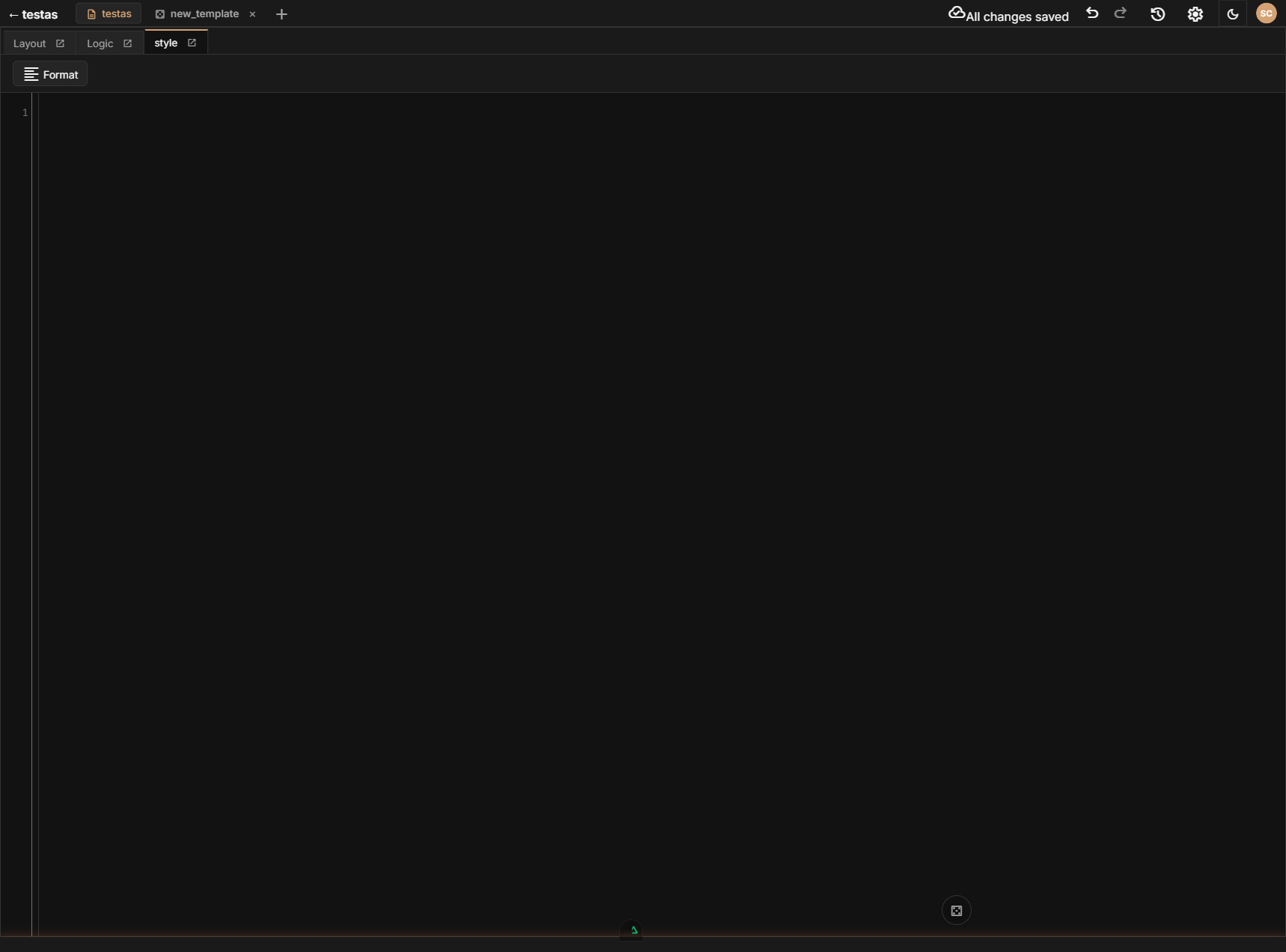
Start by targeting a component's CSS class. Every component in the Layout Editor has a Classes property in the Property Inspector where you can add custom class names. Use those class names as selectors in your CSS.
Finding CSS Selectors
To style a specific component, you need to know its CSS class name. There are several ways to find it:
- Check the Property Inspector -- Select the component in the Layout Editor, open the Properties tab, and look at its
classattribute. This shows any classes you have added. - Use the autocomplete -- The Style Editor's autocomplete suggests class names from your layout, so you can discover them as you type.
- For Roll20 exports, SheetArchitect automatically scopes your CSS inside
.charsheetto avoid interfering with Roll20's interface. Write your selectors as.charsheet .your-class-- SheetArchitect handles the scoping during export.
Give your components meaningful class names in the Property Inspector, like ability-score, header-bar, or spell-list. This makes your CSS much easier to read and maintain.
Section Pages
- Roll20 CSS -- CSS conventions, supported features, and limitations specific to Roll20
- Design Tokens in CSS -- How to use your design tokens in stylesheets for consistent theming