Creating a Sheet
Every project in Sheet Architect starts with creating a new sheet. This page walks you through the process and gives you a quick tour of what you will see when the editor opens.
Creating a New Sheet
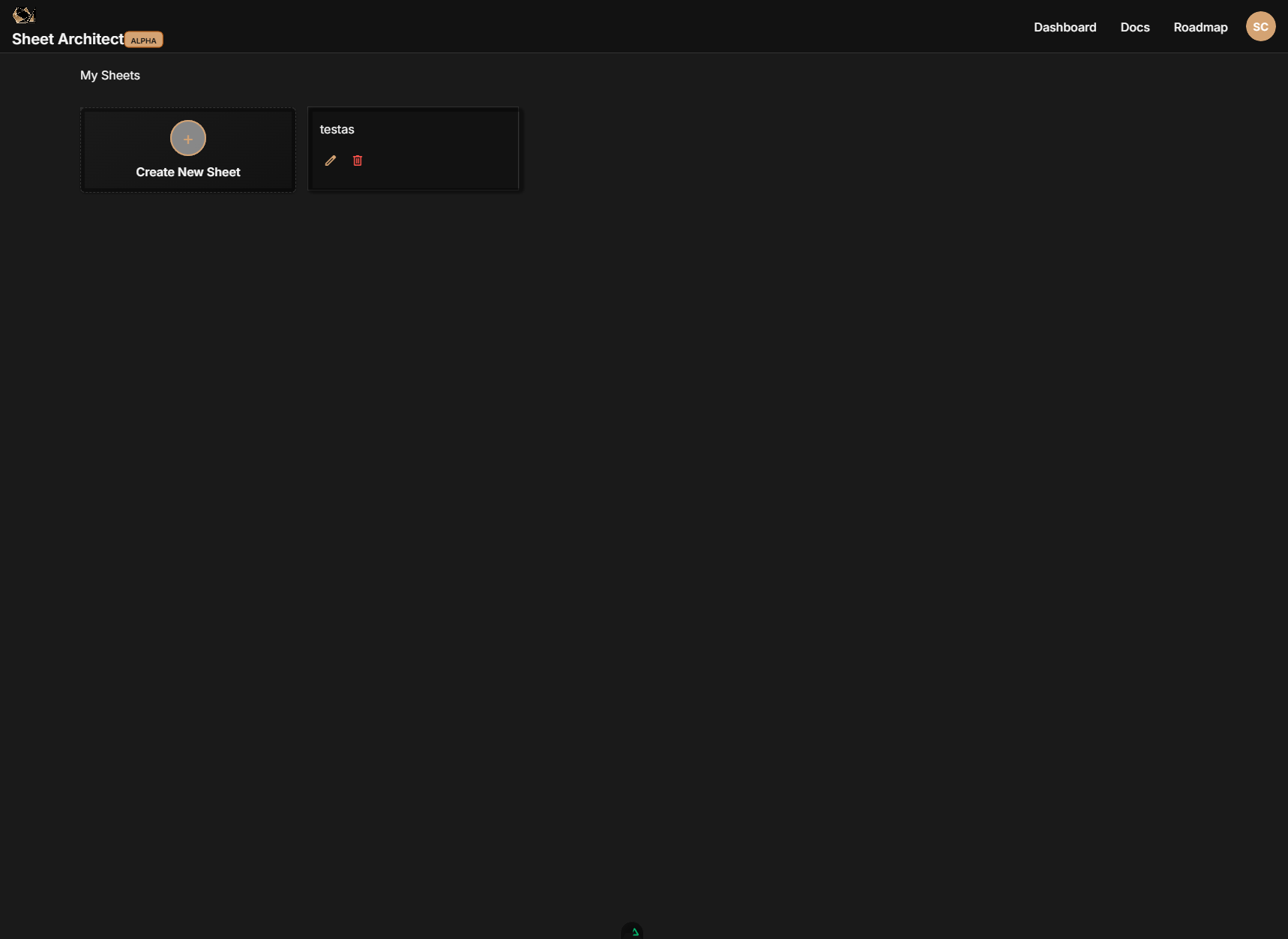
- Log in to Sheet Architect and you will land on your Dashboard -- a grid showing all of your existing sheets.
- Click the Create New Sheet card (the one with the big "+" icon).
- A dialog appears with three steps:
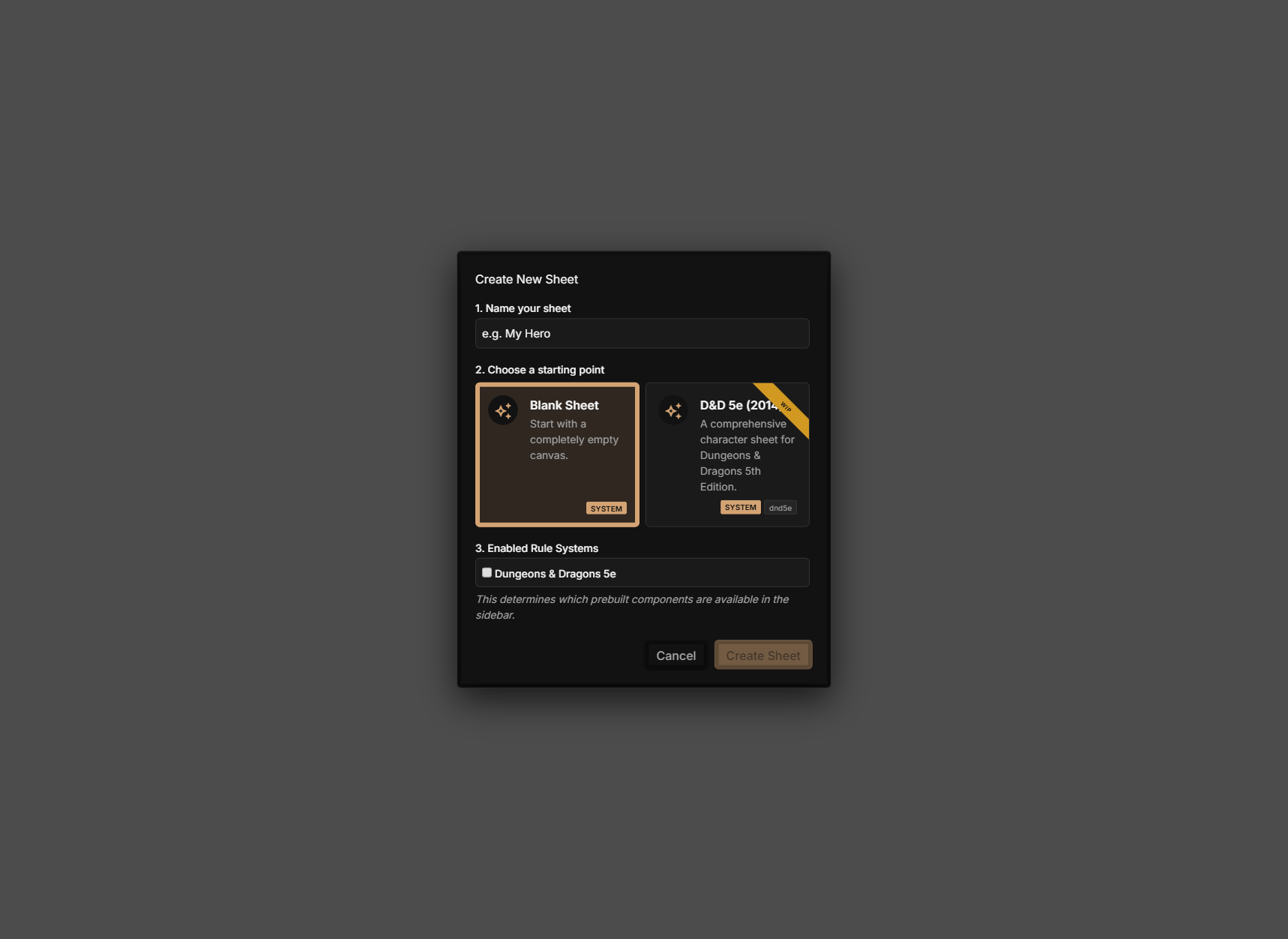
Step 1: Name Your Sheet
Type a name for your sheet in the text field. This can be anything -- "My D&D Sheet", "Starfall RPG", "Homebrew Playtest v2". You can change the name later in Sheet Settings.
Step 2: Choose a Starting Point
Pick whether to start from a blank sheet or from one of your own saved templates:
- Blank Sheet -- An empty canvas. You build everything from scratch. Choose this if you are starting a new system or want full control from the beginning.
- Your Templates -- If you have previously saved a sheet as a template, it will appear here as a starting point. This is useful when you have a base layout you want to reuse across multiple projects or variations. To save a sheet as a template, right-click its card on the Dashboard and choose Save as Template -- you will be prompted for a template name and description.
System-specific templates (for D&D 5e, Pathfinder, and other popular systems) are coming soon. These will give you a pre-built sheet with layouts, logic, and styles already configured so you can get started faster. For now, start from a blank sheet or create your own templates from sheets you have already built.
Step 3: Enabled Rule Systems
Check which rule systems you want available in the editor's component sidebar. For example, enabling Dungeons & Dragons 5e unlocks prebuilt D&D components (ability score blocks, skill lists, saving throw sections) that you can drag into your layout. You can enable or disable systems freely regardless of your starting point.
Create
Click Create Sheet. Sheet Architect builds your project and drops you straight into the editor.
What a New Sheet Contains
Every sheet, whether blank or from a template, is organized into five sections:
| Section | What It Holds |
|---|---|
| Layout | The visual tree of components that makes up your sheet -- containers, inputs, buttons, headings, and everything the player sees. A blank sheet starts with an empty root container. A template starts with the layout you saved. |
| Logic | The node graph that powers calculations, conditional behavior, and roll mechanics. A blank sheet has no logic. A template includes whatever logic the original sheet had. |
| Styles | CSS rules that control colors, fonts, spacing, and overall appearance. Templates include the styles from the original sheet; a blank sheet starts empty. |
| Attributes | The named values your sheet tracks (like strength or hit_points). Templates include the original sheet's attributes. A blank sheet has no attributes until you add components. |
| Roll Templates | Formatted layouts for how dice roll results appear in the VTT's chat. You can add as many roll templates as you need. |
You do not need to set up attributes manually. When you add a component like a number input to your layout and give it an attribute name, Sheet Architect creates the attribute for you automatically.
Finding Your Way Around the Editor
When the editor opens, here is what you are looking at:
Top Bar
The bar along the top of the screen contains:

- Back arrow and sheet name -- Click to return to the Dashboard.
- Document tabs -- Your main sheet tab, plus a tab for each roll template you create. Click the + button to add a new roll template.
- Undo / Redo buttons -- Step backward and forward through your changes (also available via Ctrl+Z and Ctrl+Y).
- Version History -- Browse and restore previous saved versions of your sheet.
- Sheet Settings -- Configure sheet-level options like the sheet name.
- Theme toggle -- Switch between light and dark mode for the editor preview.
Editor Tabs
Below the top bar, you will see tabs for the different editors. The available tabs depend on which document tab you have selected:
- On the main sheet document tab: Layout, Logic, and Style
- On a roll template document tab: Layout (for the template's structure) and Style (for the template's CSS)
Click a tab to switch editors. The Layout tab is selected by default when you first open a sheet. Any editor tab can be popped out to a floating window using the pop-out button next to the tabs, and restored back at any time. This lets you view layout and logic (or any two editors) side by side.
The Layout Editor (Default View)
When you first enter the editor, you are in the Layout tab. It has several panels:
- Component Sidebar (left) -- Browse and search for components to drag onto your sheet. Components are organized by category.
- Canvas / Preview (center) -- A live preview of your sheet. As you add and arrange components, the preview updates in real time.
- Element Hierarchy (right side or within the sidebar) -- A tree view showing the nesting structure of your layout. You can drag items here to rearrange them.
- Property Inspector (right) -- When you select a component, this panel shows its configurable properties (name, label, attribute binding, CSS classes, and more).
Do not worry about memorizing all of this right now. Each panel has its own documentation page with detailed guidance. The best way to learn is to create a blank sheet and start experimenting -- drag in some components, look at their properties, switch to the Logic tab and try connecting a few nodes.
Next Steps
- Layout Editor -- Learn how to build and arrange components
- Logic Editor -- Wire up calculations and dice rolls
- Style Editor -- Customize colors, fonts, and spacing
- Roll Template Editor -- Design chat output for rolls