Layout Editor
The Layout Editor is where your character sheet takes shape. It is a visual, drag-and-drop builder that lets you assemble the structure of your sheet — where fields go, how sections are organized, and what the player sees when they open the sheet in the VTT.
Behind the scenes, SheetArchitect translates everything you build here into the HTML that your target VTT needs. You never have to write or read that HTML yourself. If you are targeting Roll20 and are curious about how its character sheets are structured under the hood, the Roll20 wiki covers it in detail, but it is entirely optional reading.
The Four Panels
The Layout Editor is divided into four panels that work together:
| Panel | Location | Purpose |
|---|---|---|
| Component Sidebar | Left | Browse and search for components to add to your sheet |
| Element Hierarchy | Left (below sidebar) | View and rearrange the tree structure of your layout |
| Canvas / Preview | Center | See a live preview of your sheet as you build it |
| Property Inspector | Right | Configure the selected component's settings |
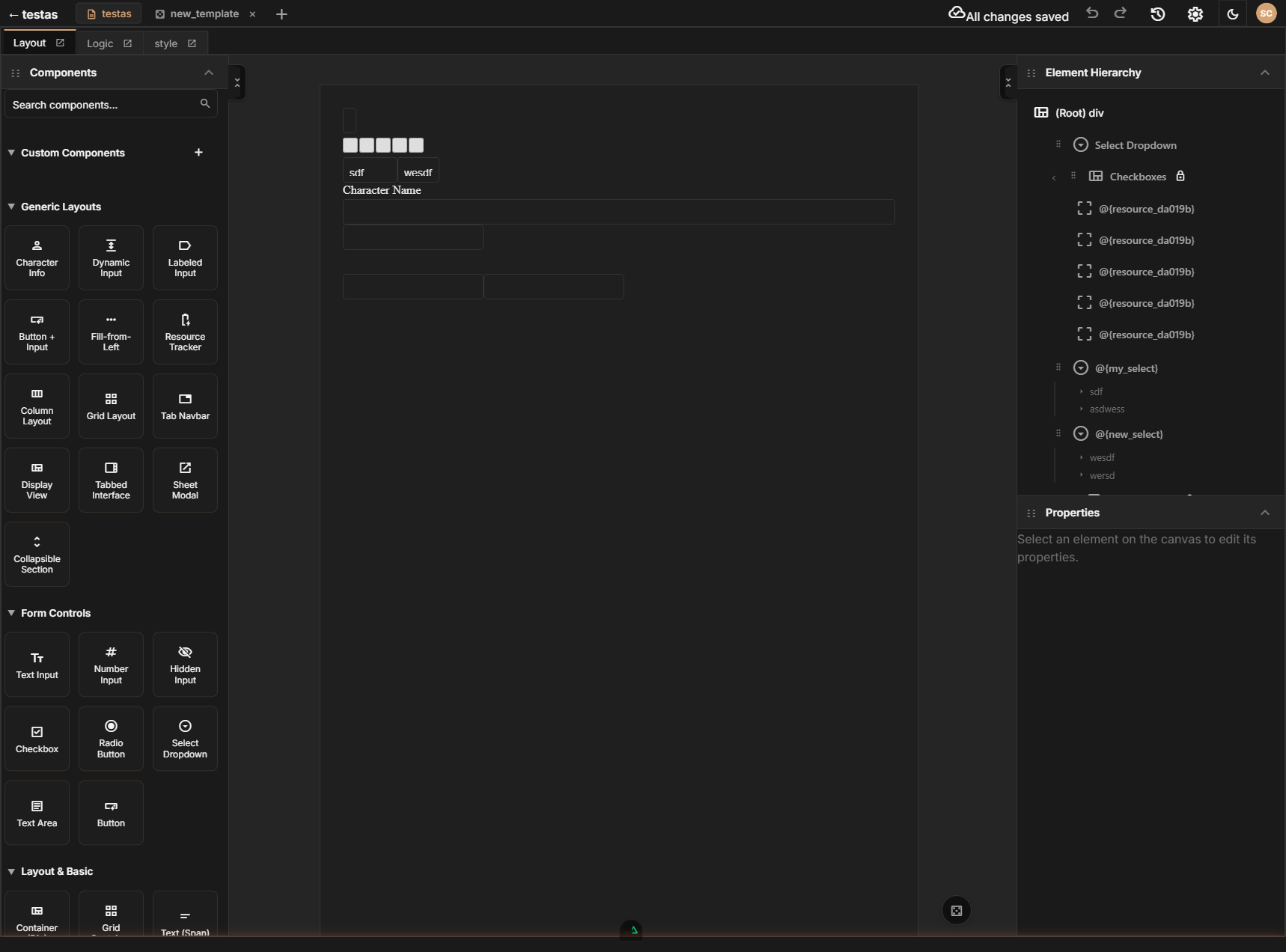
Each panel can be resized by dragging its edges, collapsed, or dragged to fit your workflow.
How Layouts Work: The Tree Metaphor
Think of your sheet layout like a set of nesting boxes. The outermost box is your sheet itself — the root container. Inside it, you place other containers that hold sections of your sheet (ability scores, combat stats, biography, and so on). Inside those, you place the actual fields, labels, and buttons that players interact with.
This nesting structure is called a tree. Each item in the tree is a component — a building block like a text input, a heading, a container, or a button. Components that can hold other components inside them (like containers and sections) are called parent components. The components inside them are their children.
Here is a simplified example of what a tree might look like:
Sheet (root)
  +-- Header Container
  |     +-- Character Name (text input)
  |     +-- Class (text input)
  +-- Abilities Container
  |     +-- Strength (ability score block)
  |     +-- Dexterity (ability score block)
  +-- Skills Container
        +-- Acrobatics (skill row)
        +-- Athletics (skill row)
You build this tree by dragging components from the sidebar and dropping them where you want them — either on the canvas or into the hierarchy panel.
Building Your First Layout
The basic workflow goes like this:
- Find a component in the Component Sidebar — either a basic building block or a ready-made prebuilt layout.
- Add it to your sheet by dragging it onto the Canvas or into the Element Hierarchy.
- Position it by dragging it to the right spot in the tree. Drop indicators show you exactly where it will land.
- Configure it using the Property Inspector — set its name, label, default value, and other options.
- Repeat until your sheet is complete.
If you are building a sheet for a popular system like D&D 5e, start with the prebuilt layouts. They give you fully configured sections (ability scores, skills, combat stats) that you can customize, saving you significant time.
Section Pages
Dive deeper into each part of the Layout Editor:
- Component Sidebar — Finding and adding components to your sheet
- Canvas and Preview — Working with the live visual preview
- Element Hierarchy — Managing the layout tree structure
- Property Inspector — Configuring component properties and attributes
- Prebuilt Layouts — Using pre-made layout blocks for common sheet sections
- Custom Components — Creating and reusing your own component patterns
- Repeating Sections — Dynamic row-based sections for inventory, spells, attacks, and more
- Design Tokens — Theming your sheet with reusable design values