Logic Editor
The Logic Editor is where you bring your character sheet to life. Instead of writing code, you connect visual blocks (called nodes) on a canvas to define how your sheet calculates values, reacts to changes, and rolls dice.
If you have ever used a flowchart, you already understand the basic idea. Data flows from left to right through a chain of connected nodes, transforming along the way.
What It Replaces
When targeting Roll20, sheet behavior is powered by Sheet Worker Scripts — blocks of JavaScript that run behind the scenes when attributes change. Writing sheet workers by hand requires programming knowledge and careful debugging.
SheetArchitect's Logic Editor generates these scripts for you. You build the logic visually, and the export pipeline writes the code.
The Canvas
When you open the Logic Editor, you see an infinite canvas. This is your workspace. You can pan around, zoom in and out, and place nodes wherever makes sense to you.
The canvas has three core concepts:
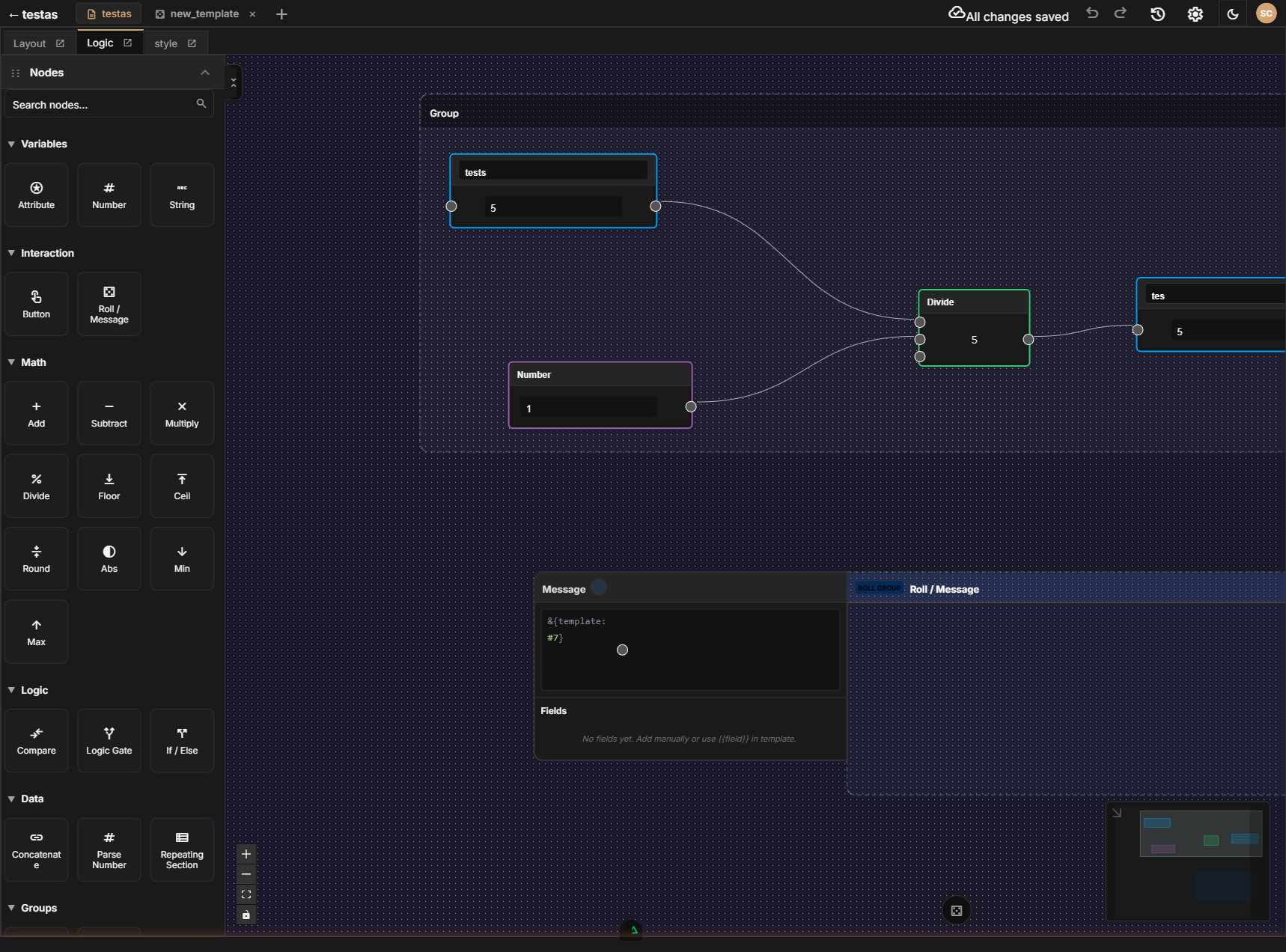
- Nodes — Individual blocks that each do one thing (read an attribute, add two numbers, round down, etc.)
- Connections — Wires between nodes that carry data from one node's output to another node's input
- Groups — Visual containers that help you organize related nodes together
A Concrete Example: Ability Modifier
Let's walk through how you would calculate a D&D ability modifier — the classic floor((score - 10) / 2) formula.
- Drag an Attribute node onto the canvas from the sidebar. Set it to read
strength(the raw ability score). - Add a Number node and set its value to
10. - Add a Subtract node. Connect the Attribute node's output to the Subtract node's first input, and the Number node's output to the second input. Now you have
strength - 10. - Add another Number node set to
2. - Add a Divide node. Connect the Subtract result to the first input and the
2to the second. Now you have(strength - 10) / 2. - Add a Floor node. Connect the Divide result to it. This rounds down to a whole number, giving you the correct modifier.
- Add a second Attribute node set to
strength_mod. Connect the Floor output to its input. This writes the calculated result back to the character sheet.
That's it. Seven nodes, six connections, and your strength modifier auto-calculates whenever the score changes. No code written.
You don't have to build ability modifiers by hand. SheetArchitect includes Batch nodes that handle all six ability scores at once. See Groups and Batches for details.
How It Fits Together
The Layout Editor defines what your sheet looks like — the fields, labels, and visual structure. The Logic Editor defines what your sheet does — how values are calculated and how actions behave. When you export your sheet, SheetArchitect combines both into a complete character sheet package for your target VTT.
Any attribute you have defined in the Layout Editor is available to read from or write to in the Logic Editor.
What's Next
- Node Types — A complete reference of every node available
- Connections — How to wire nodes together and the rules that govern data flow
- Groups and Batches — Organize your graph and handle repetitive patterns efficiently
- Canvas Navigation — Pan, zoom, select, and keyboard shortcuts
- Node Browser — Browse and search for nodes in the sidebar