Template CSS
Each roll template has its own CSS editor for controlling how it looks in Roll20's chat window. Template styles are separate from your main sheet CSS, so you can design each template independently.
The Template Style Editor
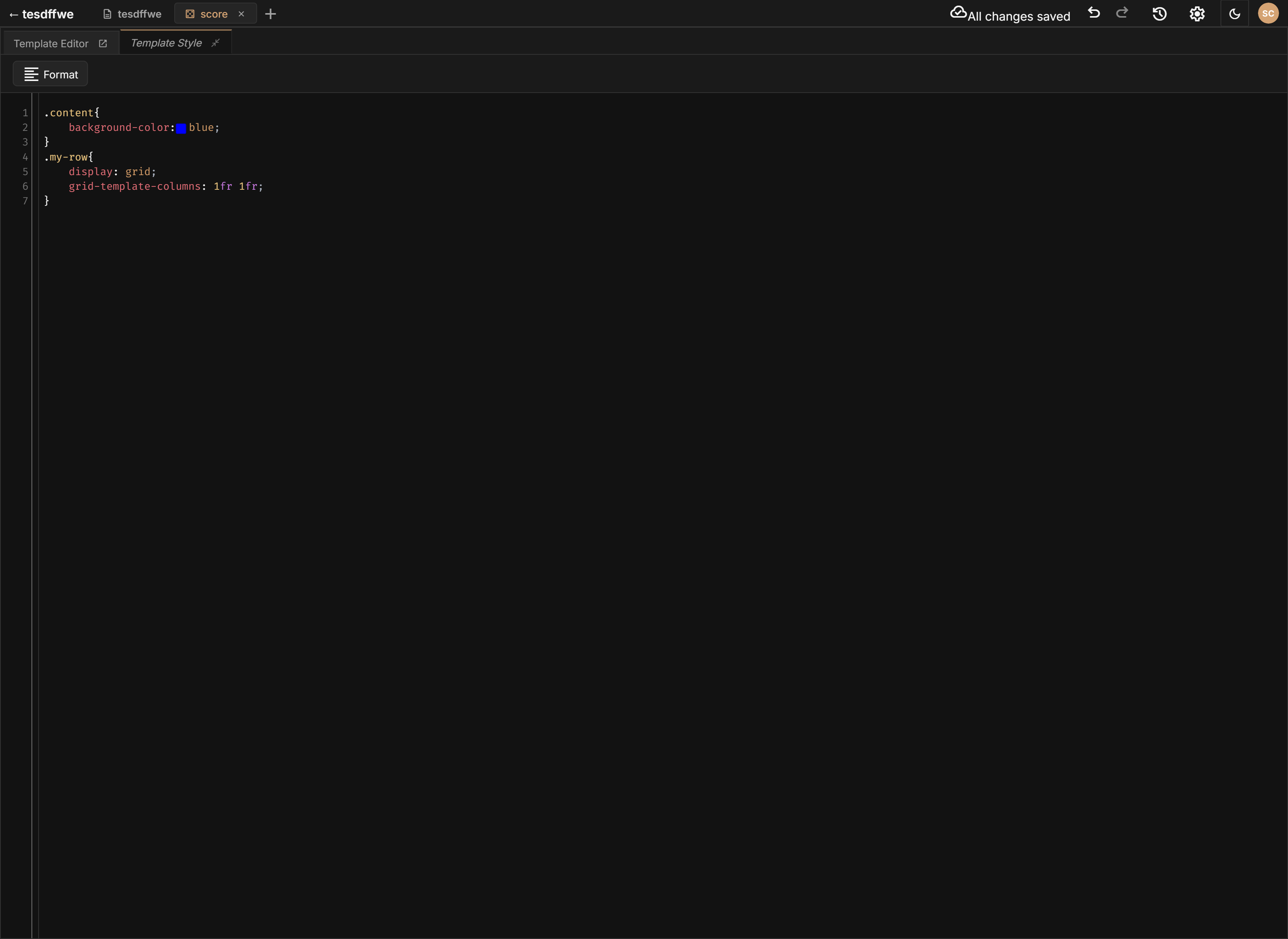
Switch to the Style tab on a roll template document tab to open the CSS editor. It works like the main Style Editor:
- Syntax highlighting for CSS
- Autocomplete for CSS properties and class names from your template layout
- Live preview -- changes appear immediately in the template preview
- Validation -- warnings for potential CSS issues
Roll20 Chat Context
Template CSS runs inside Roll20's chat window, which has its own styling context. Keep these points in mind:
Scoping
On Roll20, template styles are automatically scoped to your template. You do not need to add any special prefixes. Your selectors target elements within your template's HTML structure.
.template-header {
  background-color: #1a365d;
  color: white;
  padding: 4px 8px;
  font-weight: bold;
}

.roll-result {
  font-size: 1.2em;
  text-align: center;
}
Chat Window Constraints
The Roll20 chat window is narrower than a character sheet, so design accordingly:
- Keep layouts simple -- single-column designs work best
- Use relative units (
em,%) over fixed pixel widths where possible - Test at different zoom levels using the browser zoom
Dark Mode Considerations
Roll20 supports a dark mode for its interface. If your template uses hard-coded colors, they may not look good in both modes. Consider:
- Using colors that have sufficient contrast against both light and dark backgrounds
- Testing your template with both the light and dark preview modes in the editor
- Defining key colors as CSS custom properties so they can be overridden
Design Tokens in Templates
Your sheet's design tokens are available in template CSS as well. Use them to keep your templates visually consistent with your main sheet:
.template-header {
  background-color: var(--color-primary);
  color: var(--text-light);
  font-family: var(--font-heading);
}
This ensures that if you change your sheet's color scheme, your templates update too.
Common Patterns
Colored Header Bar
.template-header {
  background: linear-gradient(to right, #2d3748, #4a5568);
  color: #f7fafc;
  padding: 6px 10px;
  border-radius: 4px 4px 0 0;
  font-weight: bold;
}
Critical Hit Highlight
.crit-highlight {
  color: #22c55e;
  font-weight: bold;
  font-size: 1.1em;
}
Fumble Highlight
.fumble-highlight {
  color: #ef4444;
  font-weight: bold;
}
Two-Column Layout
.template-row {
  display: flex;
  justify-content: space-between;
  padding: 2px 8px;
  border-bottom: 1px solid #e2e8f0;
}

.template-row:last-child {
  border-bottom: none;
}
Keep template CSS concise. Chat messages are small and transient -- elaborate styling with gradients, shadows, and animations adds file size without much benefit. Focus on readability: clear headers, good contrast, and well-organized data.