Node Browser
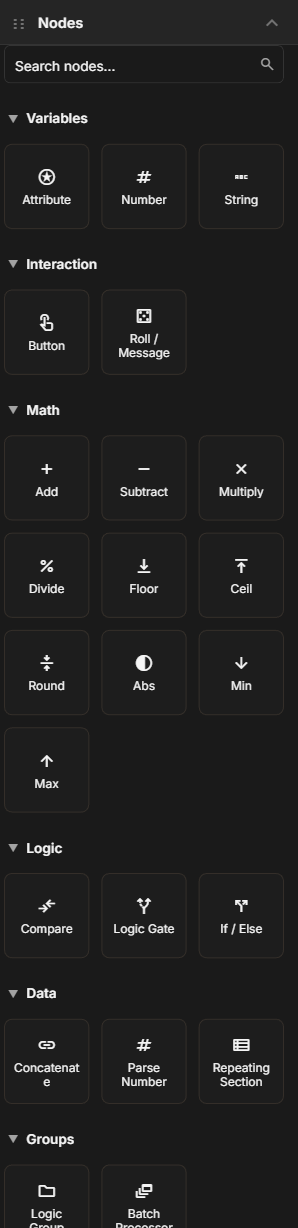
The node browser is the sidebar panel on the left side of the Logic Editor canvas. It lists every available node type, organized by category, and lets you search for specific nodes.
Browsing Nodes
Nodes are organized into collapsible categories that match the groups described in Node Types:
- Variables -- Attribute, Number, String
- Interaction -- Button, Roll / Message
- Math -- Add, Subtract, Multiply, Divide, Floor, Ceil, Round, Abs, Min, Max
- Logic -- Compare, Logic Gate, If / Else
- Data -- Concatenate, Parse Number, Repeating Section
- Groups -- Logic Group, Batch Processor
- Custom -- Script
Click a category header to expand or collapse it. Each node shows its name and a brief description.
Searching for Nodes
The search bar at the top of the sidebar filters nodes across all categories. Type a keyword like "floor" or "compare" and the sidebar instantly narrows to matching results. The search matches node names and descriptions.
If you know what you want to do but not which node does it, try searching for the concept. Searching "round" finds Floor, Ceil, and Round. Searching "text" finds String and Concatenate.
Adding Nodes to the Canvas
Drag and Drop
Click and hold a node in the sidebar, then drag it onto the canvas. Release to place the node at that position. This is the most common way to add nodes.
Context Menu
Right-click on empty canvas space to open a context menu that includes an option to add a node. This provides the same list of node types without needing to use the sidebar.
Node Details
Hover over a node in the sidebar to see a tooltip with more detail about what the node does, what inputs it expects, and what it outputs. This is a quick reference so you do not need to look up the Node Types page every time.