Version History
Version history lets you look back at previous saved states of your sheet and restore any of them. This is your safety net for bigger changes -- even if undo cannot get you back far enough, version history can.
Viewing Past Versions
Open the version history panel from the editor toolbar. You will see a chronological list of saved versions on the left, each showing:
- Timestamp -- when the version was saved
- Save type -- whether it was an auto-save or a session boundary marker
Select any version in the list to see a live preview of how your sheet looked at that point in time. The preview appears on the right side of the panel, letting you visually confirm whether a version contains the state you want before restoring it.
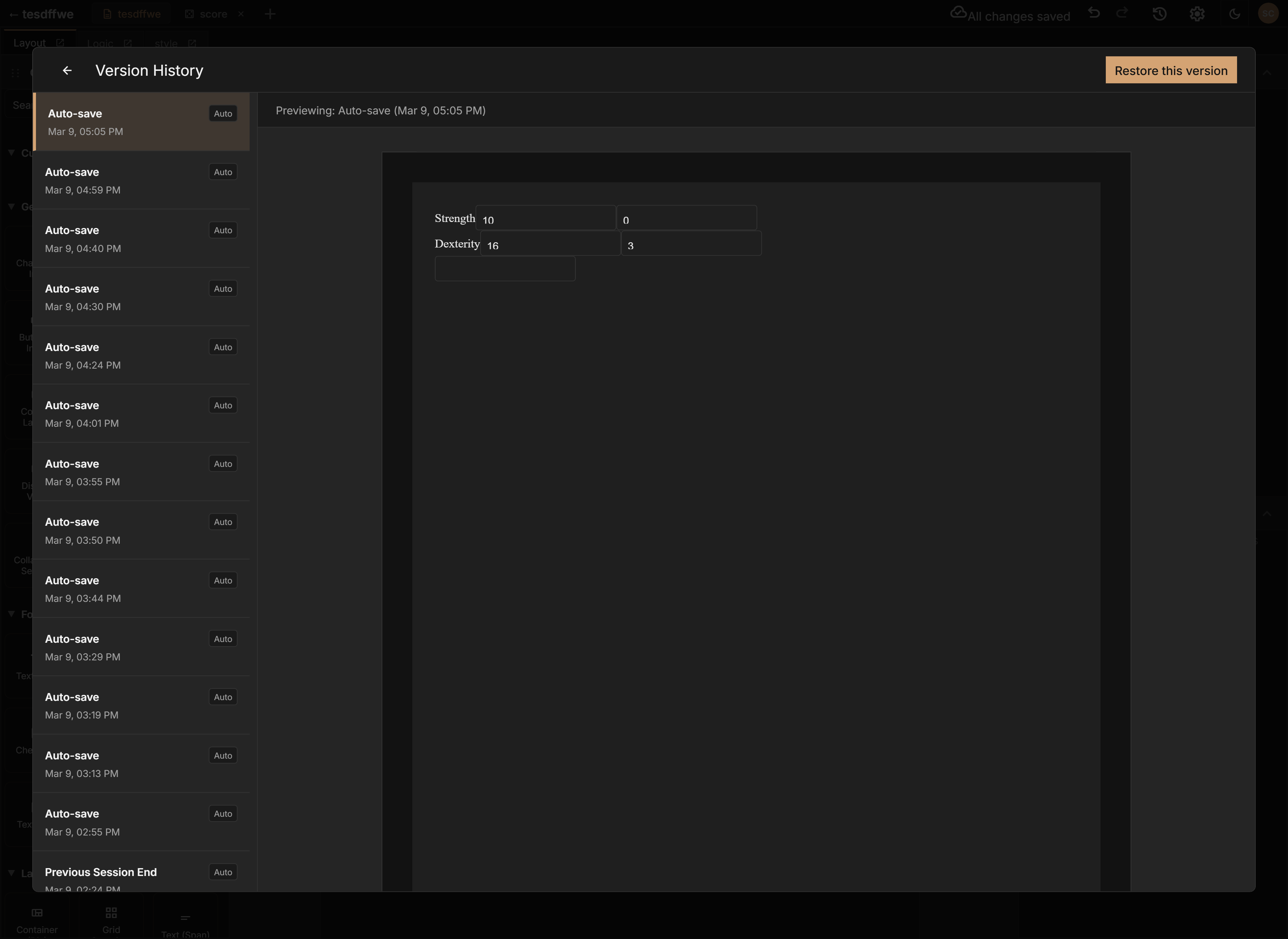
More recent versions appear at the top of the list.
Restoring a Previous Version
To go back to an earlier version of your sheet:
- Open the version history panel
- Find the version you want to restore
- Click Restore on that version
Restoring a version replaces your current sheet with the selected version. All changes you have made since that version will be lost. If you have unsaved changes, Sheet Architect will ask you to confirm before proceeding.
When to Use Version History
Version history is most useful when:
- An experiment went wrong -- You restructured a large part of your sheet and it did not work out, but you have already made too many changes for undo to help
- You want to compare -- You can view a past version to remind yourself how something used to be set up
- You need to recover deleted work -- You accidentally deleted a section or component and saved over it
Version history works across sessions. Even if you close the editor, come back days later, and realize something is wrong, you can still restore a version from your last editing session.
Version History vs. Undo
Undo and version history serve different purposes:
| Undo/Redo | Version History | |
|---|---|---|
| Scope | Individual changes | Full saved snapshots |
| Persists across sessions | No | Yes |
| Granularity | Very fine (single edits) | Coarser (full saves) |
| Best for | Quick corrections during editing | Recovering from larger mistakes or comparing past states |
Use undo for moment-to-moment corrections as you work. Use version history when you need to go back further.