Canvas and Preview
The canvas is the large central area of the Layout Editor. It shows you a live preview of your character sheet that updates instantly as you add, move, and configure components. What you see here is a close approximation of what players will see when they open your sheet in the VTT.
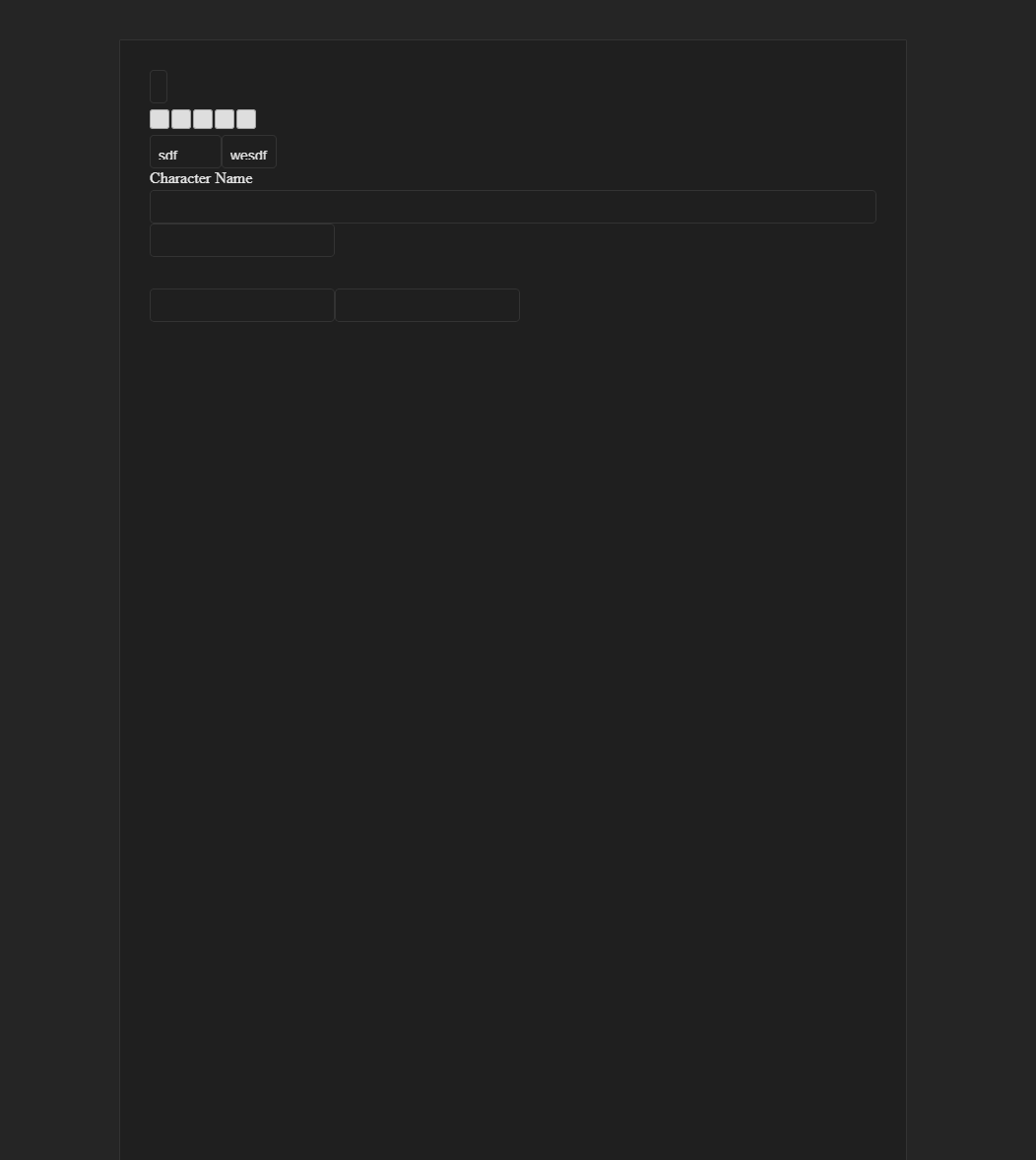
Live Preview
Every change you make is reflected on the canvas in real time:
- Add a component and it appears on the canvas immediately.
- Change a label or name in the Property Inspector and the canvas updates as you type.
- Rearrange the hierarchy and the canvas reflows to match the new order.
- Adjust styles and watch colors, spacing, and layout shift before your eyes.
This tight feedback loop means you never have to guess what your sheet will look like. Build and preview happen simultaneously.
Selecting Elements
Click any element on the canvas to select it. When you select an element:
- It gets a visible highlight outline on the canvas.
- The same element is highlighted in the Element Hierarchy tree (and the tree scrolls to show it if needed).
- The Property Inspector panel on the right populates with that element's settings.
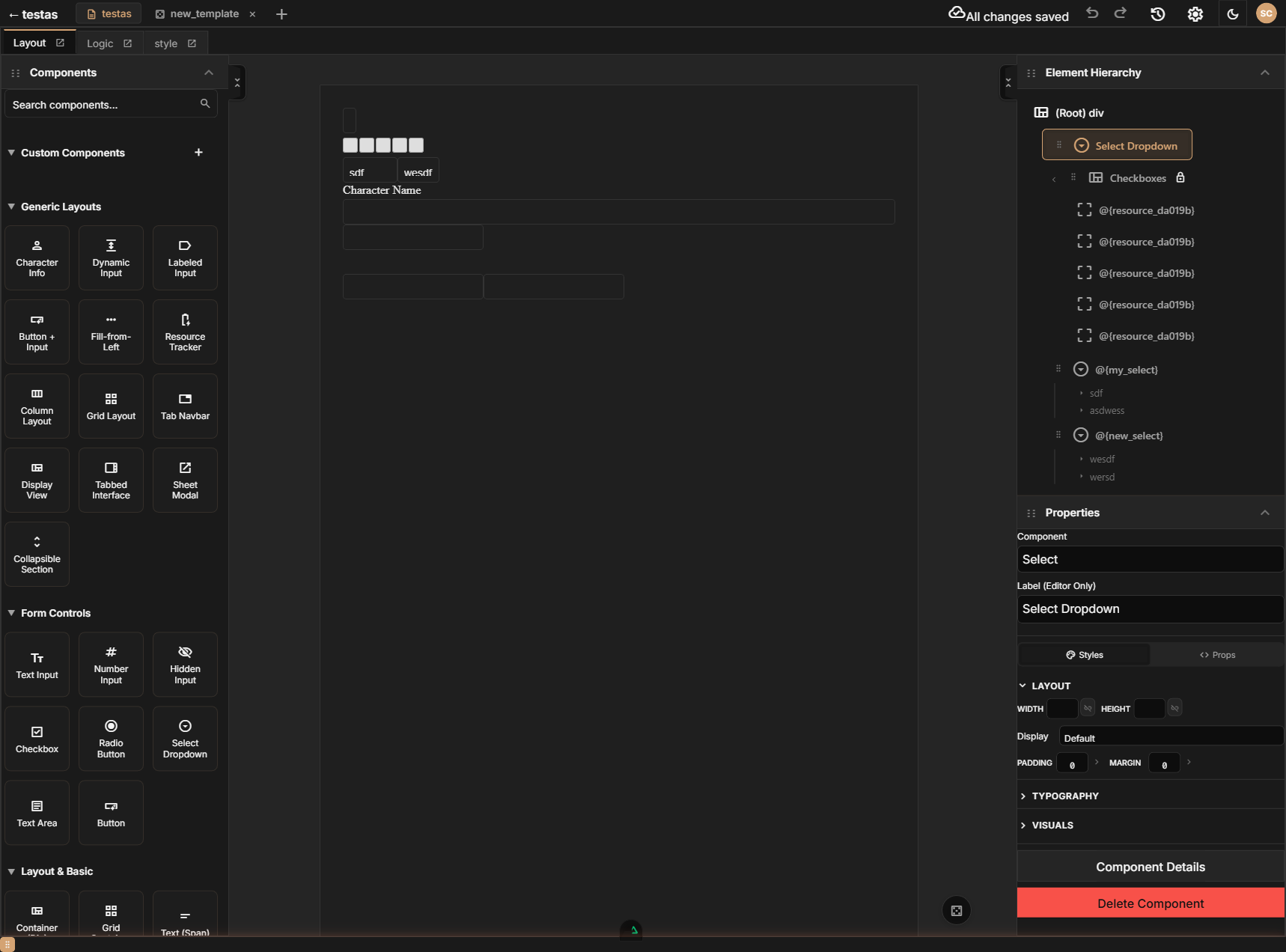
Selection syncs across all panels, so clicking something on the canvas, in the hierarchy, or anywhere else always keeps everything in agreement.
Dragging and Rearranging
You can drag elements directly on the canvas to rearrange them within their parent container. As you drag:
- Drop indicators appear to show you where the element will land — a horizontal line between siblings, or a highlighted container border when you are dropping into a new parent.
- Ghost preview elements show the projected position before you release.
- Release the mouse button to finalize the move.
For precise control over placement, especially in complex nested layouts, use the Element Hierarchy panel instead of dragging on the canvas. The hierarchy gives you a clearer picture of the parent-child relationships and makes it easier to drop components exactly where you intend.
How Preview Relates to Exported Output
The canvas preview is designed to closely match the final exported output, but there are a few differences to be aware of:
- Editor chrome: Selection highlights, drop indicators, and hover outlines are only visible in the editor. They do not appear in the exported sheet.
- Roll20 default styles: Roll20 applies its own base stylesheet to all character sheets. SheetArchitect's preview includes an approximation of these styles, but minor differences in spacing or font rendering may occur.
- Repeating sections: On the canvas, repeating sections show the template row as you designed it. On Roll20, players will see add/remove buttons and can create multiple copies of that row.
- Roll buttons: Button clicks do not execute dice rolls in the preview. They will function fully once exported to the VTT.
- Sheet worker scripts: Any logic you build in the Logic Editor runs in a simulated environment during preview. Some platform-specific behaviors (like cross-character attribute access on Roll20) are not available until the sheet is live on the VTT.
For the most accurate preview of how your sheet will look and behave, use the Export feature to generate your files and test them on your target VTT. The canvas preview is excellent for rapid iteration, but a final check on the VTT is always recommended.
Roll Output and History
When your logic graph includes roll or message nodes, the editor provides a live preview of roll results:
- Roll toast notifications appear in the bottom-right corner of the canvas whenever a roll is triggered. Each toast shows the rendered roll template output so you can see exactly how your template will look.
- Roll History panel can be toggled using the button in the editor toolbar. A badge on the button shows the number of recent rolls. The panel lists all rolls from the current session with the template name and timestamp. You can clear the history from within the panel.
Roll output and the Roll History panel are editor-only preview features. They are not included in the exported sheet -- on the VTT, rolls appear in the chat window instead.