Connections
Connections are the wires between nodes. They carry data from one node's output to another node's input, defining the flow of your logic.
Creating a Connection
To connect two nodes:
- Hover over an output port (the small circle on the right side of a node). Your cursor will change to indicate it is interactive.
- Click and drag from the output port toward the target node.
- Release on an input port (the small circle on the left side of another node).
A wire appears between the two ports, and data now flows from the source to the target.
You can also drag in reverse — from an input port to an output port. SheetArchitect figures out the direction automatically.
Data Flow Direction
Data always flows left to right. Outputs are on the right side of a node, inputs are on the left. When you read a graph, follow the wires from left to right to trace how a value gets calculated.
This mirrors how you would read a formula on paper: start with the raw values on the left, apply operations as you move right, and arrive at the final result on the far right.
Connection Rules
A few rules keep your graph valid and predictable.
One Source Per Input
Each input port accepts one incoming connection. If you drag a second wire to an input that already has one, the old connection is replaced. This prevents ambiguity — an input always knows exactly where its value comes from.
Fan-Out Is Fine
A single output can connect to multiple inputs. For example, your strength_mod Attribute node can feed into an Athletics skill calculation, a melee attack bonus, a carrying capacity formula, and anything else that needs it — all at the same time. The value is simply shared with every connected target.
Multi-Connection Inputs
Some nodes are designed to accept multiple connections on the same input. The Add, Multiply, Min, and Max nodes all have a "Values" input that works this way — every connected value gets processed together (summed, multiplied, etc.).
Nodes that care about order (Subtract, Divide, Concatenate) handle multiple inputs differently. They give each connection its own labeled slot (A, B, C...) instead of combining them on one port. A new slot appears automatically when you connect to the last available one.
No Loops
You cannot create a circular chain where a node's output eventually feeds back into its own input. SheetArchitect detects loops and prevents them. If you try to complete a connection that would create a cycle, the connection will not be made.
This is a fundamental rule — a value cannot depend on itself, or the calculation would never finish.
Removing a Connection
To remove a connection:
- Click on the wire to select it (it will highlight), then press Delete or Backspace.
- Alternatively, drag from the input port that the wire connects to. This detaches the wire and lets you either drop it on empty space (removing it) or connect it to a different node.
Connection Validity
When you drag a wire, valid target ports highlight to show where you can drop it. If you try to connect incompatible ports (for example, both are outputs), the connection simply will not be created.
If a connection would create a loop, SheetArchitect blocks it and the wire snaps back.
Reading Your Graph
A well-organized graph reads like a sentence from left to right:
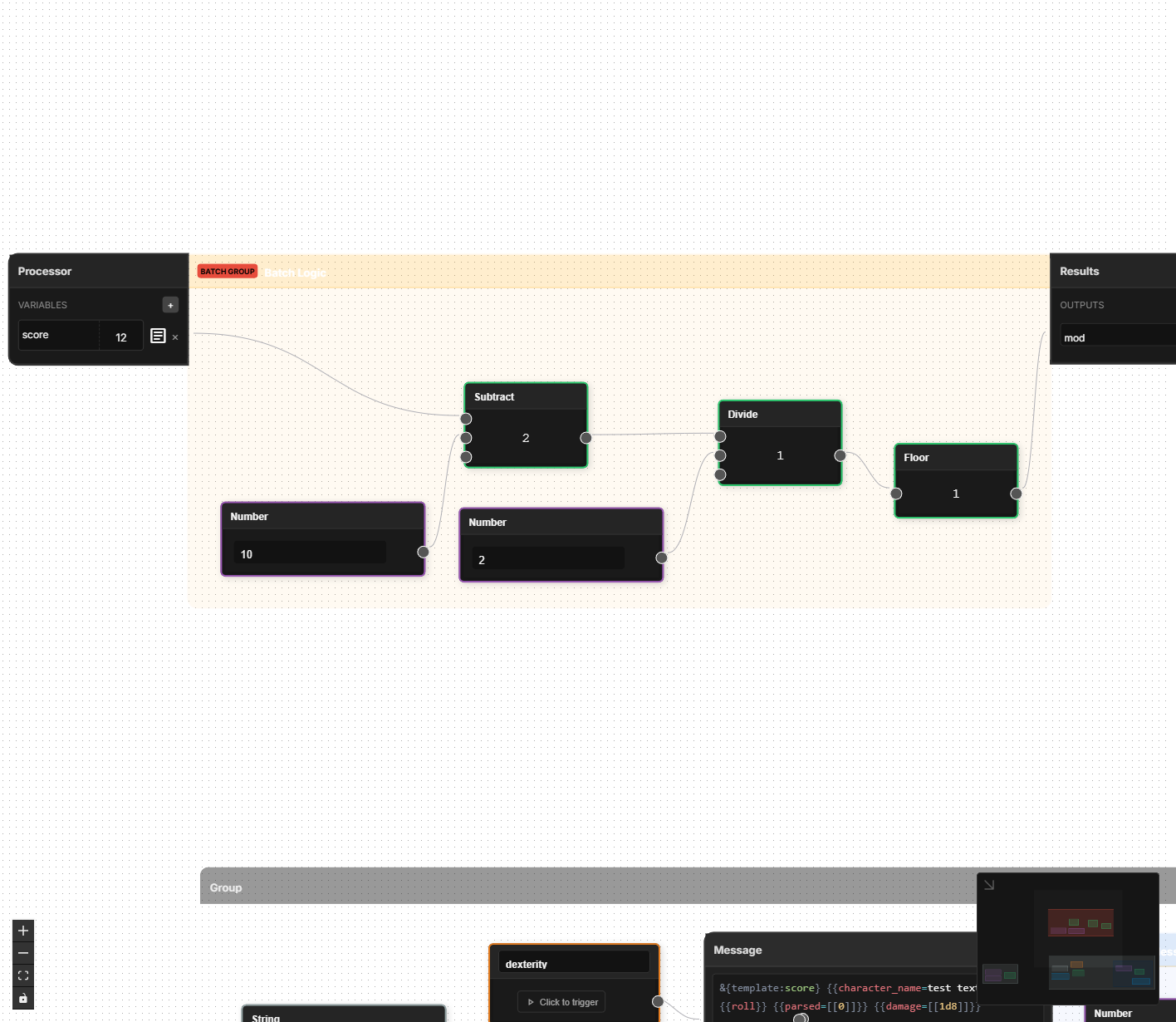
"Take the strength score, subtract 10, divide by 2, round down, and store it as strength_mod."
Each wire in that chain represents one step. If you ever lose track of what a section of your graph does, follow the wires from left to right and read each node's operation in sequence.
Error Visualization
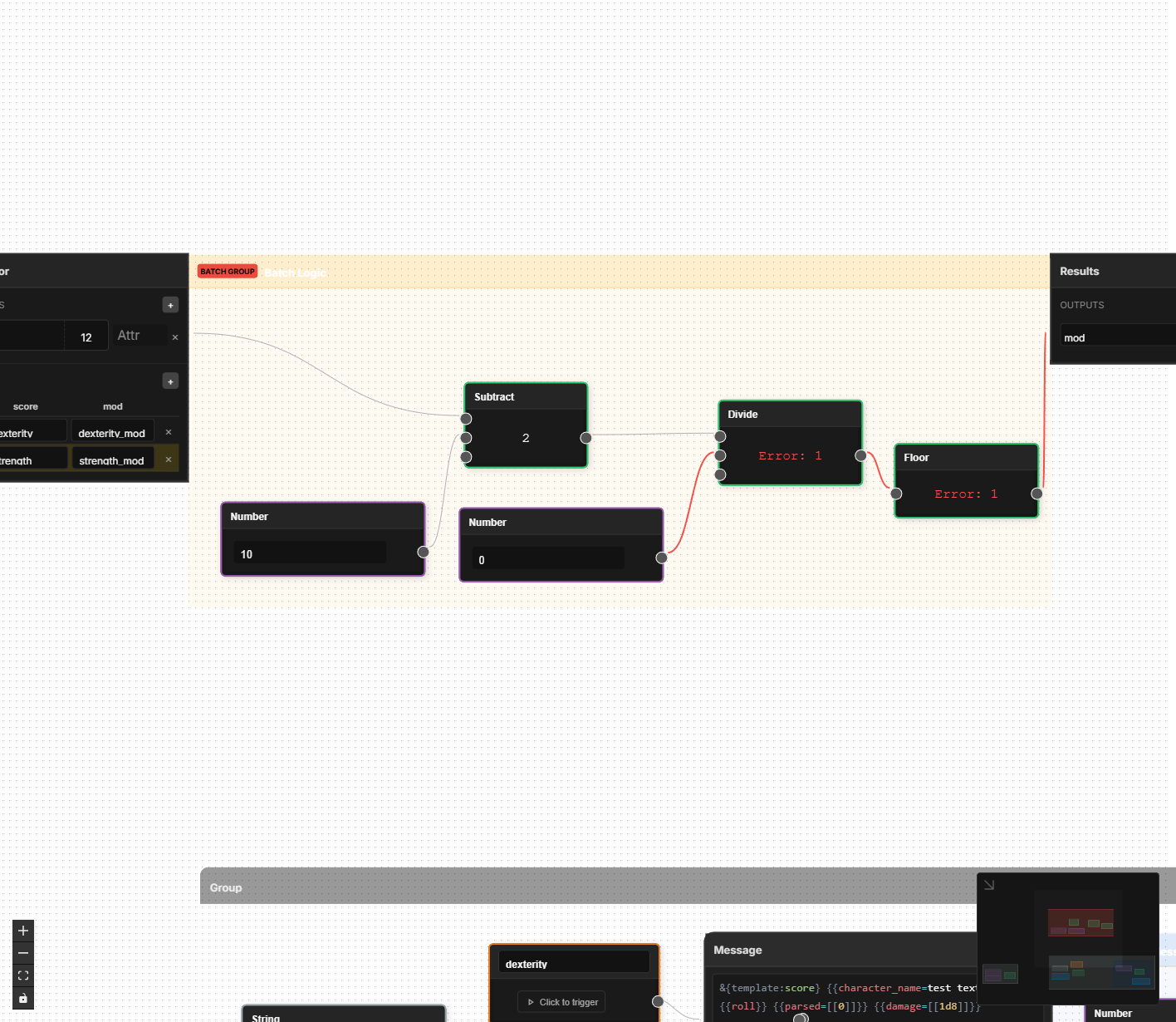
When a connection is invalid or a node encounters an error during evaluation, the affected connections display in red. This makes it easy to spot problems in your graph at a glance -- follow the red wires to find where data flow is breaking down. Fix the source of the error and the connection color returns to normal.
Use Logic Groups to visually cluster related calculations together. A group labeled "Ability Modifiers" immediately tells you what that section of the graph is for, even if you come back to it weeks later.