Roll Template Editor
Roll templates control how dice roll results appear in the VTT chat window. When a player clicks a roll button on your character sheet, the result shows up in chat. Without a roll template, that result is plain text. With a roll template, you can create formatted, styled output with headers, organized sections, conditional content, and color coding.
For example, an attack roll template might display the attack name in a colored header, show the d20 result with hit/miss highlighting, and list the damage dice below -- all formatted to match your sheet's visual style.
What Are Roll Templates?
Roll templates are a Roll20 feature — other VTTs may handle chat output differently, and Sheet Architect will adapt the export format per platform. On Roll20, every character sheet can define one or more roll templates. These templates are HTML/CSS structures embedded in your sheet that Roll20 uses to format chat output. When a roll button calls a template by name and passes it data (like an attack name, a roll formula, and damage), the template arranges that data into a formatted chat message.
Roll templates are one of the most powerful features of Roll20 character sheets. They turn raw dice results into readable, game-relevant output that your whole table can understand at a glance.
For full details on how roll templates work on Roll20, see the official Roll Templates documentation.
How Roll Templates Work
A roll template has three parts:
- A name -- Roll buttons reference templates by name (e.g.,
&{template:attack}) - An HTML layout -- The structure of the chat output, with placeholders for roll data
- CSS styles -- Formatting for the template's appearance in chat
When a player clicks a roll button that uses a template, Roll20 fills in the placeholders with the actual roll results and displays the formatted output in chat.
Creating a Roll Template
- In the editor toolbar, click the + button next to your document tabs to add a new roll template.
- A new tab appears. Give your template a name (e.g., "attack", "spell", "save"). This name is what roll buttons use to reference the template.
- The roll template editor opens with its own Layout and Style tabs.
You can create as many roll templates as you need -- different templates for attacks, spells, skill checks, saves, and any other roll type your sheet uses.
Template names are automatically normalized: spaces are replaced with underscores and the name is lowercased. A template named "Spell Attack" becomes spell_attack in Roll20 syntax.
The Roll Template Editor Interface
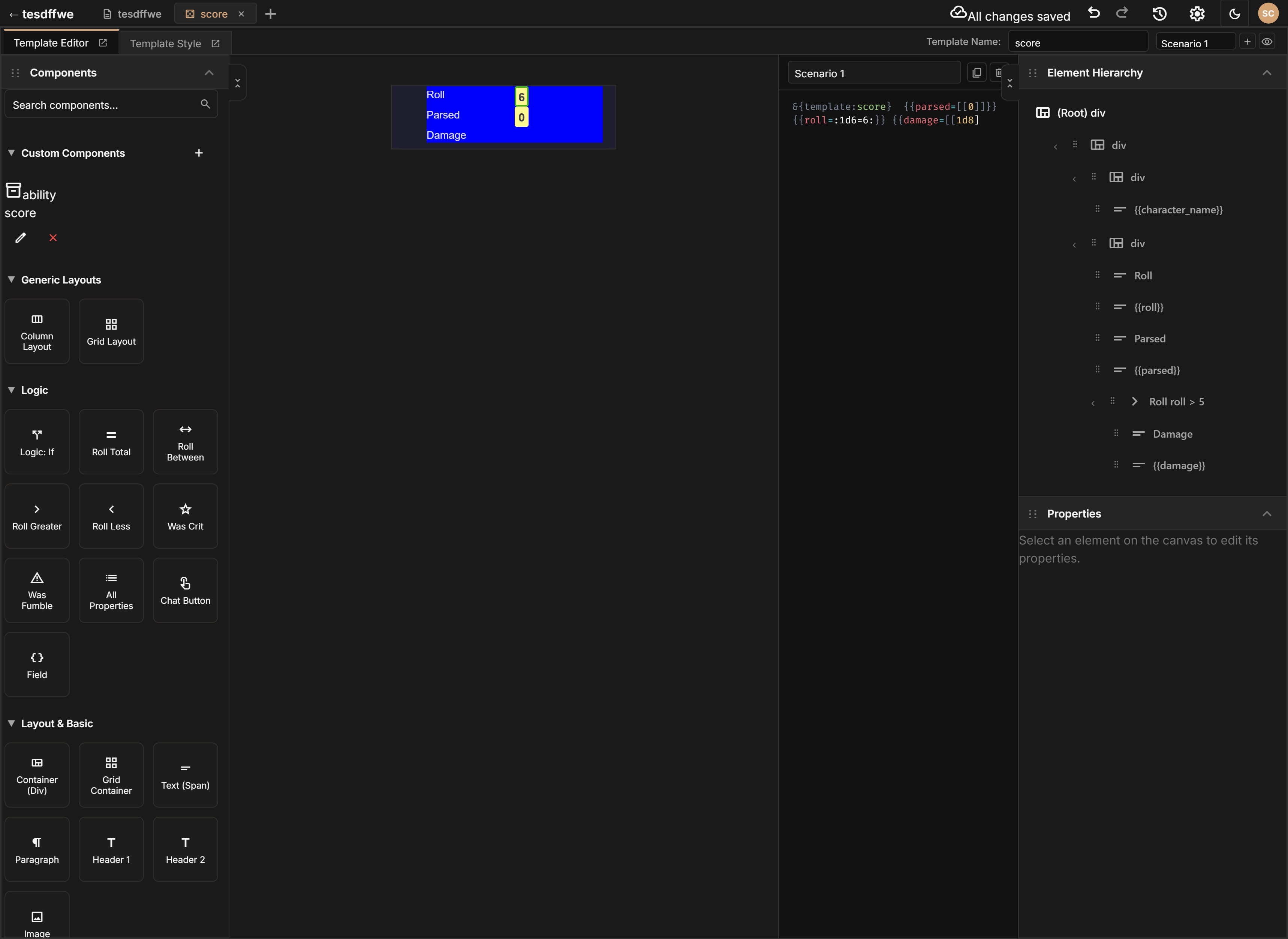
The roll template editor has a similar layout to the main sheet editor but is tailored for template design:
- Component Sidebar (left) -- Browse components you can add to your template layout
- Canvas / Preview (center) -- A live preview showing how your template will look in Roll20's chat window, styled to resemble the Roll20 chat container
- Scenario Editor (center-right) -- Write test scenarios using Roll20 macro syntax to preview your template with sample data
- Element Hierarchy (right) -- The tree structure of your template layout
- Property Inspector (right) -- Configure selected component properties
The canvas preview simulates Roll20's chat appearance, including the chat bubble styling, so you can see how your template will actually look in game.
Key Features
Visual Template Builder
Build your template layout by dragging and dropping components, just like the main Layout Editor. Add containers, text elements, and data fields to structure your chat output. The preview updates in real time as you build.
Scenario Testing
The Scenario System lets you write sample Roll20 macro calls and see how your template renders with different data. Test critical hits, fumbles, missing fields, and edge cases without leaving the editor.
Template CSS
Each template has its own CSS editor for styling. Template styles are scoped to the template, so they do not affect your main sheet or other templates.
Conditional Display (Ghost Mode)
Templates often include logic blocks that show or hide content based on roll results (e.g., highlight on a critical hit, hide damage on a miss). Ghost mode lets you see these hidden blocks at low opacity so you can select and edit them even when they would normally be invisible.
Roll History
A roll history panel tracks template renders during your editing session. You can review past test rolls and compare how different scenarios look.
Section Pages
- Template Layout -- Building the visual structure of your template
- Scenarios -- Testing templates with sample data using Roll20 macro syntax
- Template CSS -- Styling your templates for Roll20 chat