Template Layout
The template layout defines the HTML structure of your roll template -- what fields appear, how they are organized, and what conditional logic controls visibility. You build it the same way you build the main sheet layout: by dragging components into a tree structure.
The Template Canvas
The center of the editor shows a live preview of your template rendered inside a simulated Roll20 chat bubble. This gives you an accurate picture of how the template will look when a player makes a roll in game.
The preview supports both light and dark color modes, so you can check how your template looks in both contexts using the theme toggle in the toolbar.
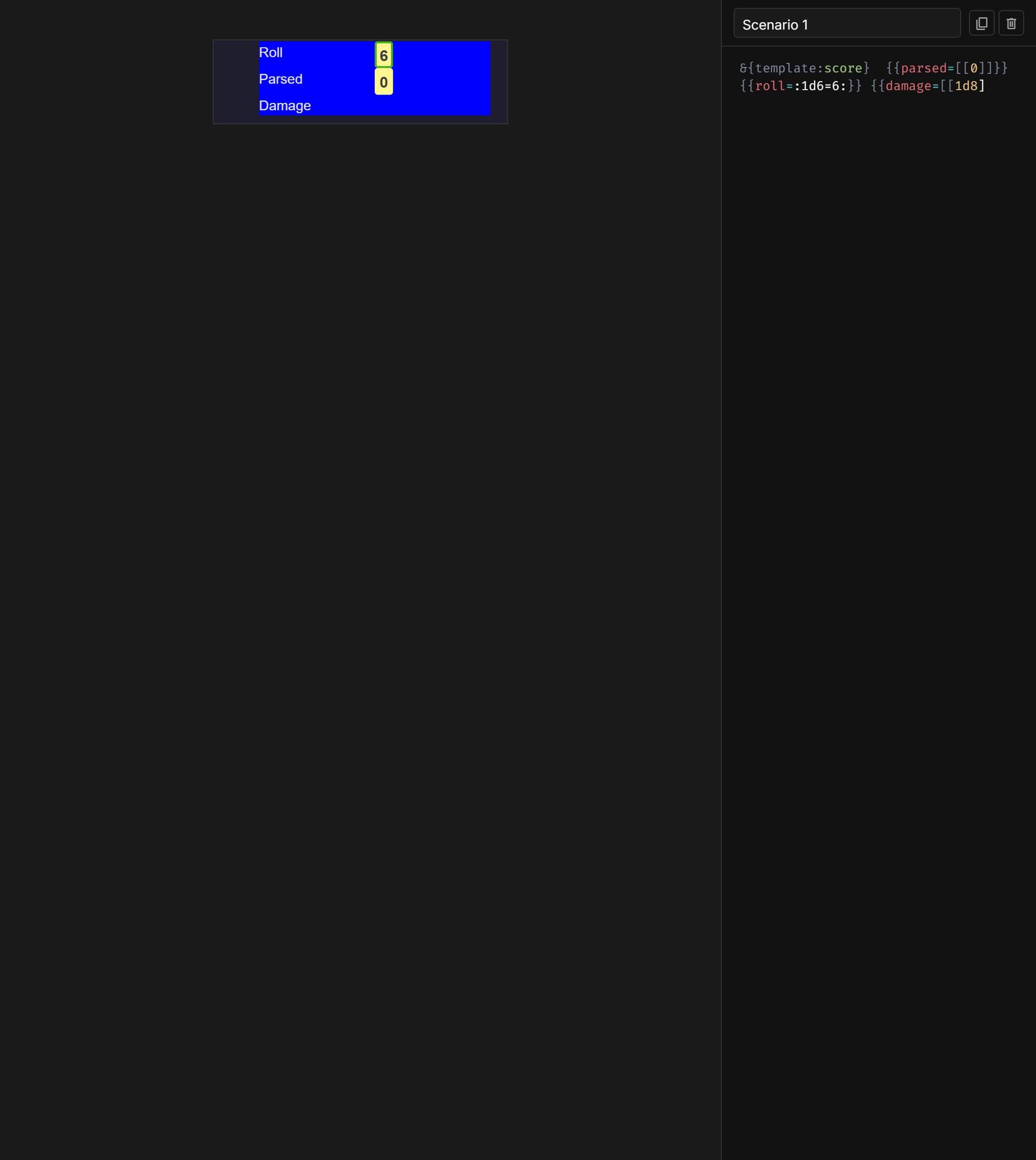
Building the Template
Adding Components
Use the Component Sidebar to add elements to your template:
- Containers -- Group related fields (e.g., a header section, a results section, a damage section)
- Text elements -- Static labels like "Attack", "Damage", "Save DC"
- Template fields -- Placeholders that Roll20 fills with actual roll data at runtime. These correspond to the
{{fieldname=value}}entries in roll macros.
Drag components from the sidebar onto the canvas or into the hierarchy, just like the main Layout Editor. The hierarchy panel on the right shows the full tree structure.
Template Fields
Template fields are the core of a roll template. Each field has a name that corresponds to a field in the Roll20 macro syntax. For example, if your macro includes {{name=Longsword}} and {{damage=[[2d6+3]]}}, your template needs fields named name and damage to display those values.
When a field's data is provided by the macro, it renders its content. When a field is not provided, it can be hidden entirely.
Conditional Logic Blocks
Roll templates support conditional display based on roll results and field presence. The Component Sidebar includes a Logic category with dedicated components for each condition type:
| Component | Condition | Shows content when... |
|---|---|---|
| Logic: If | Field presence | A specific field has a value |
| Roll Total | Exact match | A roll result equals a specific number |
| Roll Greater | Greater than | A roll result is greater than a threshold |
| Roll Less | Less than | A roll result is less than a threshold |
| Roll Between | Range | A roll result falls within a range (inclusive) |
| Was Crit | Critical hit | A roll was a natural 20 |
| Was Fumble | Critical failure | A roll was a natural 1 |
| All Properties | Iterate | Loops over all provided fields as key/value pairs |
When you add a logic component, a dialog prompts you to configure its condition -- the field name to check, and for comparison types, the target value(s). Each logic block wraps child components that are shown or hidden based on evaluation.
You can invert any condition using the "Inverted Logic" checkbox in the creation dialog. An inverted block shows its content when the condition is not met (e.g., show "Miss" text when the roll is not a critical hit).
Additionally, the Logic category includes:
- Chat Button -- A button that executes a chat command or macro when clicked in Roll20
- Field -- Displays a template field value (e.g.,
{{attack}}) in the template output
Ghost Mode
When working with conditional logic blocks, some parts of your template may be hidden because their conditions are not met by the current scenario data. This makes them impossible to select or edit.
Ghost mode solves this by rendering hidden logic blocks at reduced opacity (30%) instead of hiding them completely. Toggle ghost mode using the ghost icon button in the scenario editor.
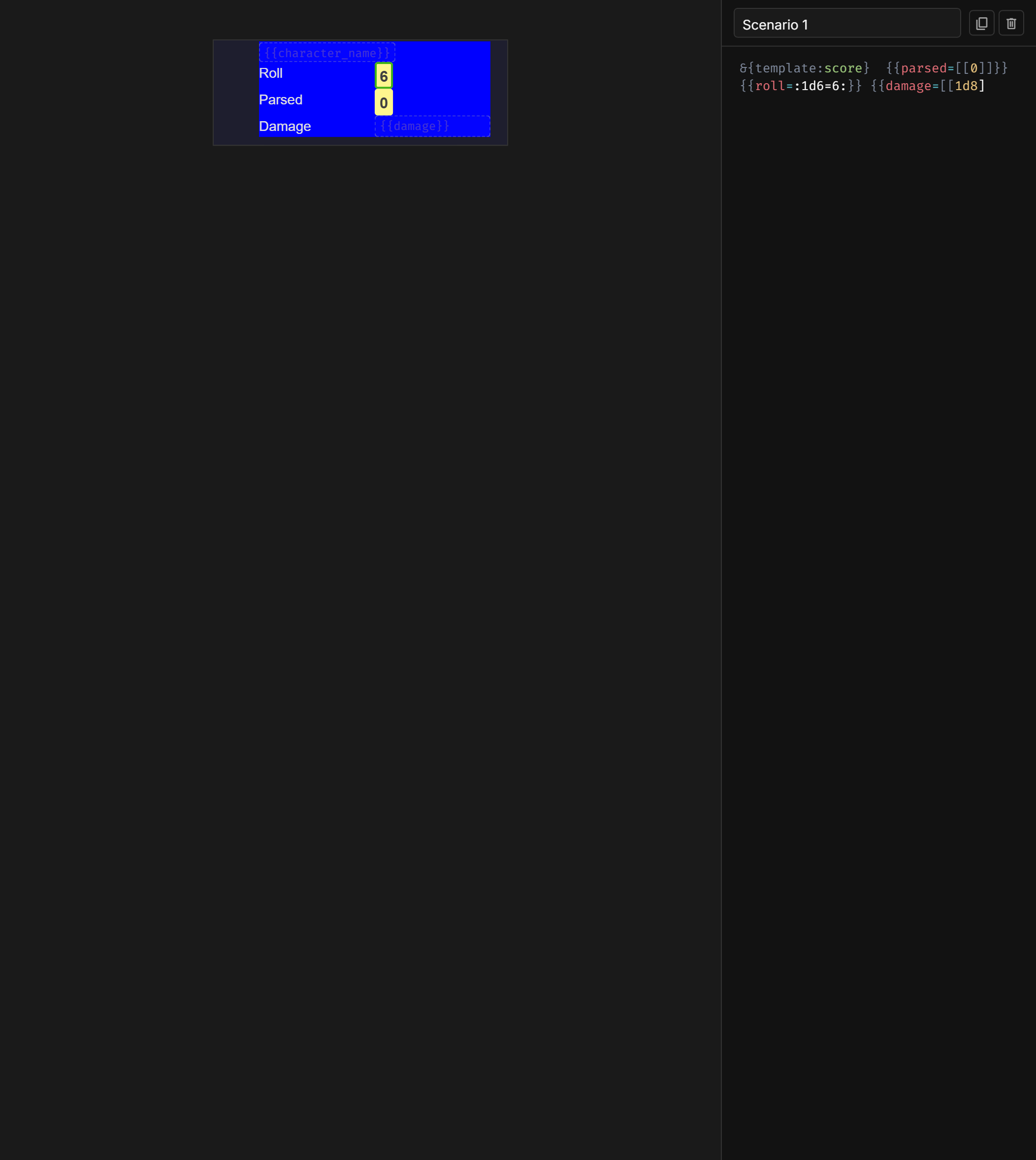
With ghost mode on, you can:
- See the full structure of your template, including all conditional branches
- Visually distinguish which blocks are active (full opacity) vs. hidden (ghosted) for the current scenario
- Understand the complete template layout at a glance
Note that ghosted elements are display-only -- they cannot be interacted with while ghosted. To edit a hidden block, either switch to a scenario that makes it visible, or temporarily toggle ghost mode off and back on.
Ghost mode is purely an editing tool. It does not affect how the template looks on Roll20. Hidden blocks remain fully hidden in the exported template.
Editing Component Properties
Select any component in the template to configure it in the Property Inspector:
- Component type -- Change what kind of element this is
- Label -- Editor-only name for identifying the component in the hierarchy
- Logic settings -- Configure conditional display rules (which field to check, what comparison to use, whether to invert)
- Styles -- Visual styling (colors, spacing, typography)
- HTML attributes -- Raw attribute key-value pairs for advanced use
Preview with Scenarios
The template preview is driven by Scenarios. The scenario editor (to the right of the canvas) lets you write sample Roll20 macro text, and the preview renders your template with that data in real time. Change the scenario text and the preview updates instantly.
This tight feedback loop lets you design your template and test it simultaneously, seeing exactly how different roll results will look before exporting.