Scenarios
Scenarios let you test how your roll template looks with different data without leaving the editor. Each scenario is a sample Roll20 macro call that feeds data into your template preview.
What Is a Scenario?
A scenario is a block of text written in Roll20 macro syntax. It specifies which template to use and what data to pass to it. For example:
&{template:attack} {{name=Longsword}} {{roll=[[1d20+5]]}} {{damage=[[2d6+3]]}}
When you write a scenario, the template preview renders your template with those field values filled in, showing you exactly what a player would see in Roll20 chat.
The Scenario Editor
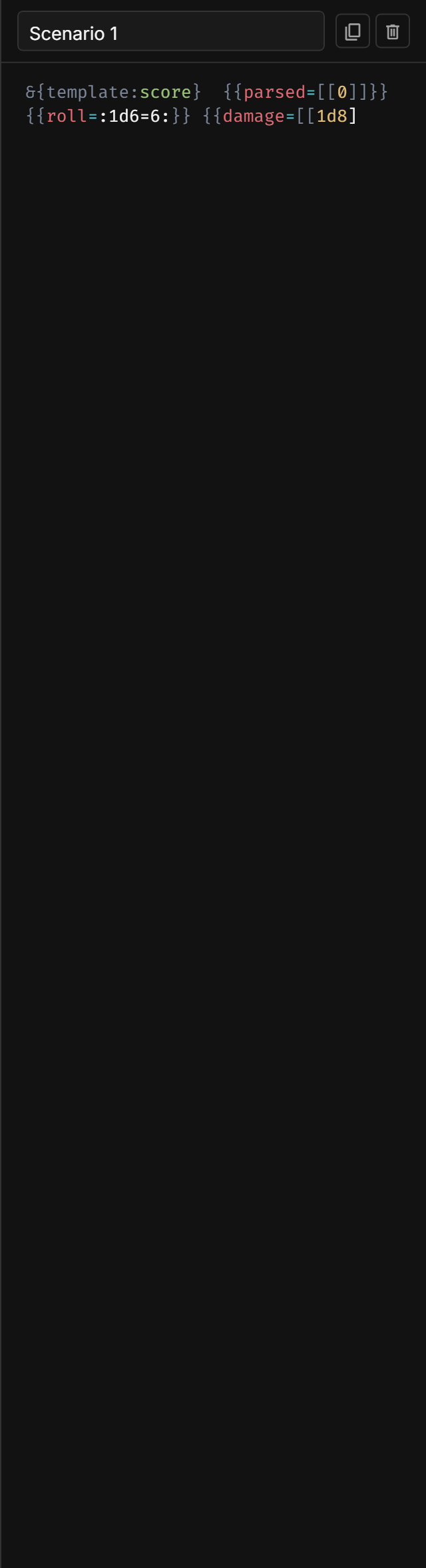
The scenario editor panel appears to the right of the template canvas. It includes:
- A code editor with Roll20 syntax highlighting, auto-completion, and bracket matching
- A scenario selector dropdown for switching between multiple scenarios
- New, Duplicate, and Delete buttons for managing scenarios
- Ghost mode toggle for showing hidden conditional blocks
The template declaration line (&{template:name}) is automatically generated and shown as a read-only prefix at the top of the editor. You only need to write the field entries.
Writing Scenario Text
Basic Fields
Fields use the Roll20 template syntax: {{fieldname=value}}. The field name must match a field in your template layout:
{{name=Fireball}} {{damage=[[8d6]]}} {{save_dc=15}}
A field without a value ({{fieldname}}) is treated as present but empty, which is useful for testing if conditions:
{{name=Sneak Attack}} {{crit}}
Shortcodes
Shortcodes let you simulate specific roll results without relying on random dice. They are placed inside field values and control what the preview displays:
| Shortcode | Meaning | Example |
|---|---|---|
:crit: | Mark the roll as a critical hit | {{roll=[[1d20+5 :crit:]]}} |
:fumble: | Mark the roll as a fumble | {{roll=[[1d20+5 :fumble:]]}} |
:=N: | Set the roll result to exactly N | {{roll=[[1d20+5 :=18:]]}} |
:>N: | Result is greater than N | {{roll=[[1d20+5 :>15:]]}} |
:<N: | Result is less than N | {{roll=[[1d20+5 :<5:]]}} |
:N-M: | Result is between N and M (inclusive) | {{roll=[[1d20+5 :10-15:]]}} |
:NdM=R: | Specific die roll with result R | {{roll=[[1d20+5 :1d20=20:]]}} |
Inverted Shortcodes
Prefix any shortcode with ^ to invert its meaning:
^:crit:-- Not a critical hit^:>15:-- Not greater than 15 (i.e., 15 or less)
Combining Shortcodes
You can use multiple shortcodes in a single field. They are combined as an intersection (all conditions must be satisfied):
{{roll=[[1d20+5 :>10: :<20:]]}}
This means the roll result is both greater than 10 and less than 20.
Inline Roll Rendering
Inline rolls ([[expr]]) in field values are evaluated and rendered as styled HTML spans, matching Roll20's inline roll appearance. The preview shows:
- The numeric total of the roll
- A tooltip with the full roll breakdown (e.g., "Rolling 1d20+5 = (14) = 19")
- Color-coded styling: green for critical hits (max die value), red for fumbles (rolled a 1), and purple when both occur in the same roll
This inline roll data also drives logic block evaluation -- a field containing [[1d20+5]] with a result of 18 will trigger a "Roll Greater > 15" logic block to show its content.
Auto-Computed Values
When you use a shortcode like :=18: without explicit display text, the preview automatically displays the resolved value. For die expression shortcodes like :1d20=20:, the preview shows the total (die result plus any modifiers).
Managing Multiple Scenarios
You can create multiple scenarios to test different situations:
- Normal roll -- Average values, all fields populated
- Critical hit -- Natural 20, maximum damage
- Fumble -- Natural 1, minimal results
- Missing fields -- Some optional fields omitted to test conditional display
- Edge cases -- Extreme values, empty strings, boundary conditions
Creating Scenarios
- Click the scenario dropdown and select New Scenario to create a blank scenario
- Click the Duplicate button to copy the current scenario as a starting point for a variation
- Each scenario has an editable name -- click the name to rename it
Switching Scenarios
Use the scenario dropdown to switch between scenarios. The template preview updates immediately to reflect the selected scenario's data.
Create at least three scenarios for every template: a "happy path" with all fields populated, a critical hit scenario, and a minimal scenario with only required fields. This catches most display issues before you export.
How Scenarios Drive the Preview
The scenario parser extracts field names and values from your macro text, evaluates shortcodes to determine roll results, and passes the complete field data -- including numeric totals, crit/fumble flags, and rendered HTML -- to the template renderer. The template's conditional logic blocks are then evaluated against this data:
- If blocks check whether the named field exists and has a non-empty value
- Roll Total / Greater / Less / Between blocks compare the field's numeric roll total against the configured threshold(s)
- Was Crit / Was Fumble blocks check the crit/fumble flags on the field's roll result
This means the preview accurately reflects what Roll20 would show -- including conditional sections that appear or disappear based on roll results, inline roll styling with crit/fumble highlighting, and field-presence checks.