Saving & History
Sheet Architect is designed so you never lose work. Your sheet is saved automatically as you build it, and every change is tracked so you can undo mistakes or go back to an earlier version.
Auto-Save
Your sheet saves automatically as you work. You do not need to remember to hit a save button -- Sheet Architect detects when you make changes and saves them in the background.
The save indicator in the editor toolbar shows you the current status:
- Saved -- Everything is saved. You can close the editor safely.
- Saving... -- A save is in progress. Wait a moment before closing.
- Unsaved changes -- Changes have been made but not yet saved. This usually means a save is about to start, or there is a connection issue.
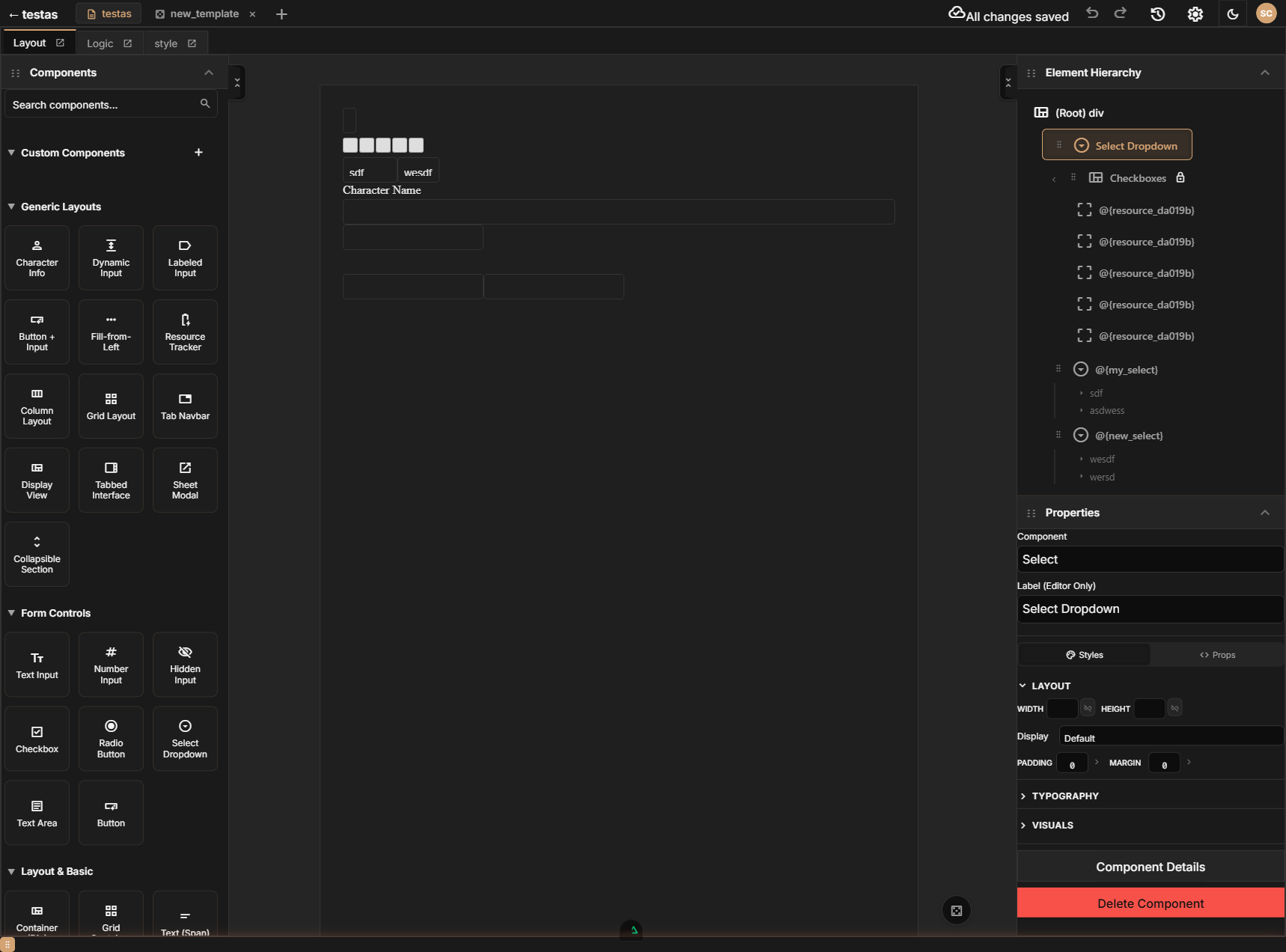
Auto-save triggers a short time after you stop making changes. If you are rapidly editing -- dragging components around, typing in the property inspector -- the save waits until you pause so it does not slow down your work.
Manual Save
You can force an immediate save at any time:
- Keyboard shortcut: Press Ctrl+S (or Cmd+S on Mac)
- Toolbar: Click the save button in the editor toolbar
Manual save is useful when you want to be certain your latest changes are persisted before closing the browser, or before making a risky change.
Get in the habit of pressing Ctrl+S before making big changes like deleting a section or reorganizing your layout. That way, if something goes wrong, your pre-change state is definitely saved.
What Gets Saved
Every part of your sheet is included in saves:
- Layout structure and component properties
- Attribute definitions
- Logic graphs (nodes and connections)
- CSS styles
- Design tokens
- Roll templates
- Sheet metadata (name, description, settings)
Section Pages
- Undo & Redo -- Step backward and forward through your recent changes
- Version History -- View and restore past saved versions of your sheet